




HP Sprocket Panorama Printer – Improving Print Quality
This document is for HP Sprocket Panorama Printer and the HP Panorama app.
The quality of a printed photo is not as expected. Resolve the following print quality problems:
- Dark, light, faded, or blurry areas
- Lines or streaks
- Individual color on the edges of the photo
Step 1: Check the Photo Paper
- Take the cover off the printer.

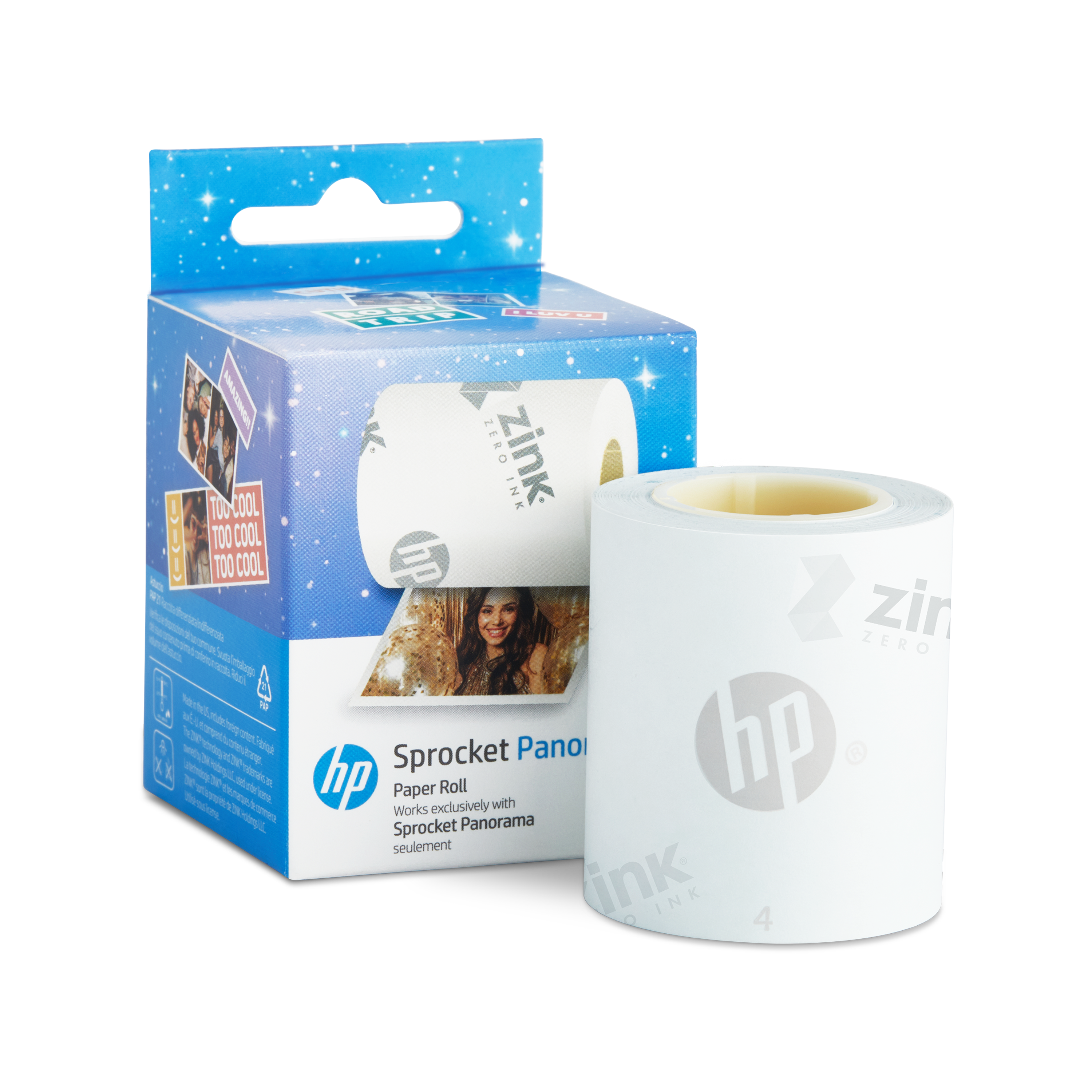
- Remove the paper roll from the printer.
- Check the paper for any quality issues.
- Make sure the paper is compatible with the HP Sprocket Panorama Printer.
- Wipe the paper carefully with a microfiber cloth if the glossy side is dirty.
- Remove part of the paper roll is discarded if the paper is wrinkled, bent, or torn.
- Once the paper is checked, place the paper back into the printer.

- Place the cover back on the printer.
Step 2: Clean the Printer
The cleaning sheet that comes with the printer can be used to clean and prepare your printer for a new paper roll. Use the cleaning sheet after every 10 – 15 prints or if streaking appears in the photos to ensure the best print quality. Keep the cleaning sheet for future maintenance.
- Make sure that the printer is turned on.

- Pair the printer with the HP Panorama app.
- Remove the cover and take out the paper roll holder.
- Feed the edge of the included cleaning sheet into the slot until it hits the stopper.

- Place the cover back on the printer until it clicks in place. Then, the cleaning sheet will automatically start to feed.

Step 3: Update the Firmware
- Make sure the printer has at least 25% charge.
- Open the HP Panorama app and update the firmware.
Note: The app will automatically prompt you when a firmware update is available.
- Wait a few minutes for the firmware to update. Stay in the app as the firmware updates.
Step 4: Edit your Photos
- Open the HP Panorama app.

- Select the photo or photos you wish to print.

- Use the editing features to adjust the color, brightness, contrast, and other factors of your prints.
Step 5: Cool down the printer
Allow your printer a few minutes to cool down between prints.
Step 6: Other things to try
- Make sure the lighting is sufficient when taking photos.
- Avoid touching the glossy side of the photo paper.
- Do not leave the cover off the printer.
- Store the paper roll in a cool, dry place.


Still need support?
Get personal help from our support team by visiting the Contact Us page.
Contact UsRegister your product.
Secure your product with easy access to help, updates, and documentation.
Product Registration
 Please enter a valid email.